
Unity调用Window窗口

Chinar
END
| 本文提供全流程,中文翻译。 Chinar 坚持将简单的生活方式,带给世人! (拥有更好的阅读体验 —— 高分辨率用户请根据需求调整网页缩放比例) |
| Chinar —— 心分享、心创新! 助力快速完成 Unity调用 Window api 执行保存/打开操作 为新手节省宝贵的时间,避免采坑! |
Chinar 教程效果:
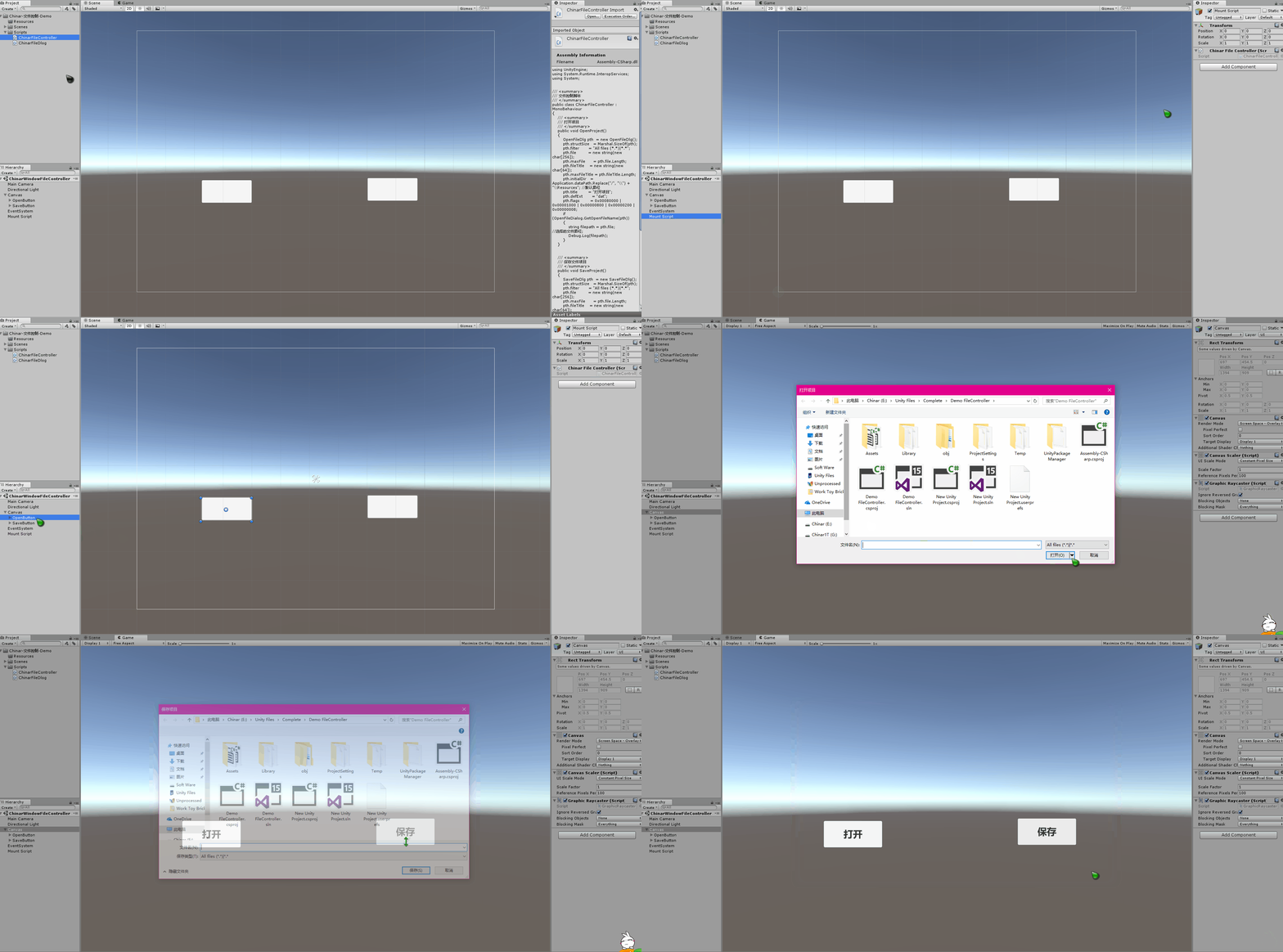
全文高清图片,点击即可放大观看 (很多人竟然不知道)
1
File Controller —— 文件控制脚本
用来控制打开/保存项目文件
将两个脚本放到项目中,分别绑定2个按钮 打开/保存
ChinarFileController 脚本需要挂载到空物体上
即可正常调用
具体需求,需要自己来定,保存到某个路径下

using UnityEngine;using System.Runtime.InteropServices;using System;/// <summary>/// 文件控制脚本/// </summary>public class ChinarFileController : MonoBehaviour{ /// <summary> /// 打开项目 /// </summary> public void OpenProject() { OpenFileDlg pth = new OpenFileDlg(); pth.structSize = Marshal.SizeOf(pth); pth.filter = "All files (*.*)|*.*"; pth.file = new string(new char[256]); pth.maxFile = pth.file.Length; pth.file = new string(new char[64]); pth.maxFile = pth.file .Length; pth.initialDir = Application.dataPath.Replace("/", "\") + "\Resources"; //默认路径 pth. = "打开项目"; pth.defExt = "dat"; pth.flags = 0x00080000 | 0x00001000 | 0x00000800 | 0x00000200 | 0x00000008; if (OpenFileDialog.GetOpenFileName(pth)) { string filepath = pth.file; //选择的文件路径; Debug.Log(filepath); } } /// <summary> /// 保存文件项目 /// </summary> public void SaveProject() { SaveFileDlg pth = new SaveFileDlg(); pth.structSize = Marshal.SizeOf(pth); pth.filter = "All files (*.*)|*.*"; pth.file = new string(new char[256]); pth.maxFile = pth.file.Length; pth.file = new string(new char[64]); pth.maxFile = pth.file .Length; pth.initialDir = Application.dataPath; //默认路径 pth. = "保存项目"; pth.defExt = "dat"; pth.flags = 0x00080000 | 0x00001000 | 0x00000800 | 0x00000200 | 0x00000008; if (SaveFileDialog.GetSaveFileName(pth)) { string filepath = pth.file; //选择的文件路径; Debug.Log(filepath); } }}2
FileDlog —— 文件日志
无需挂载到空物体上
using System.Runtime.InteropServices;using System;/// <summary>/// 文件日志类/// </summary>// [特性(布局种类.有序,字符集=字符集.自动)][StructLayout(LayoutKind.Sequential, CharSet = CharSet.Auto)]public class ChinarFileDlog{ public int structSize = 0; public IntPtr dlgOwner = IntPtr.Zero; public IntPtr instance = IntPtr.Zero; public String filter = null; public String customFilter = null; public int maxCustFilter = 0; public int filterIndex = 0; public String file = null; public int maxFile = 0; public String file = null; public int maxFile = 0; public String initialDir = null; public String = null; public int flags = 0; public short fileOffset = 0; public short fileExtension = 0; public String defExt = null; public IntPtr custData = IntPtr.Zero; public IntPtr hook = IntPtr.Zero; public String templateName = null; public IntPtr reservedPtr = IntPtr.Zero; public int reservedInt = 0; public int flagsEx = 0;}[StructLayout(LayoutKind.Sequential, CharSet = CharSet.Auto)]public class OpenFileDlg : ChinarFileDlog{}public class OpenFileDialog{ [DllImport("Comdlg32.dll", SetLastError = true, ThrowOnUnmappableChar = true, CharSet = CharSet.Auto)] public static extern bool GetOpenFileName([In, Out] OpenFileDlg ofd);}public class SaveFileDialog{ [DllImport("Comdlg32.dll", SetLastError = true, ThrowOnUnmappableChar = true, CharSet = CharSet.Auto)] public static extern bool GetSaveFileName([In, Out] SaveFileDlg ofd);}[StructLayout(LayoutKind.Sequential, CharSet = CharSet.Auto)]public class SaveFileDlg : ChinarFileDlog{}运行效果:
支持
May Be —— 搞开发,总有一天要做的事!
| 拥有自己的服务器,无需再找攻略! Chinar 提供一站式教程,闭眼式创建! 为新手节省宝贵时间,避免采坑! |
先点击领取 —— 阿里全产品优惠券 (享受最低优惠)
1 —— 云服务器超全购买流程 (新手必备!)
2 —— 阿里ECS云服务器自定义配置 - 购买教程(新手必备!)
3—— Windows 服务器配置、运行、建站一条龙 !
4 —— Linux 服务器配置、运行、建站一条龙 !
Chinar
END
本博客为非营利性个人原创,除部分有明确署名的作品外,所刊登的所有作品的著作权均为本人所拥有,本人保留所有法定权利。违者必究
对于需要复制、转载、链接和传播博客文章或内容的,请及时和本博主进行联系,留言,Email: ichinar@icloud.com
对于经本博主明确授权和许可使用文章及内容的,使用时请注明文章或内容出处并注明网址
继续阅读与本文标签相同的文章
-
服务器的购买与网站的创建
2026-05-27栏目: 教程
-
抽象类、抽象函数/抽象方法详解
2026-05-27栏目: 教程
-
C#语法-虚方法详解 Virtual 虚函数
2026-05-27栏目: 教程
-
面向对象语言:继承关系教程
2026-05-27栏目: 教程
-
C#动态创建Xml-LinQ方式
2026-05-27栏目: 教程