说明一下:学习xamarin android一段时间,准备写一些xamarin android相...
说明一下:学习xamarin android一段时间,准备写一些xamarin android相关的例子,alertdialog也是使用的非常多得空间之一,非常感谢鸟巢上的小猪,我也是看着他写的教程学会的。参考他的那一章 http://www.runoob.com/w3cnote/android-tutorial-alertdialog.html
1.基本使用流程
- Step 1:创建AlertDialog.Builder对象;
- Step 2:调用setIcon()设置图标,setTitle()或setCustomTitle()设置标题;
- Step 3:设置对话框的内容:setMessage()还有其他方法来指定显示的内容;
- Step 4:调用setPositive/Negative/NeutralButton()设置:确定,取消,中立按钮;
- Step 5:调用create()方法创建这个对象,再调用show()方法将对话框显示出来;
2.几种常用的对话框使用示例
运行效果图: 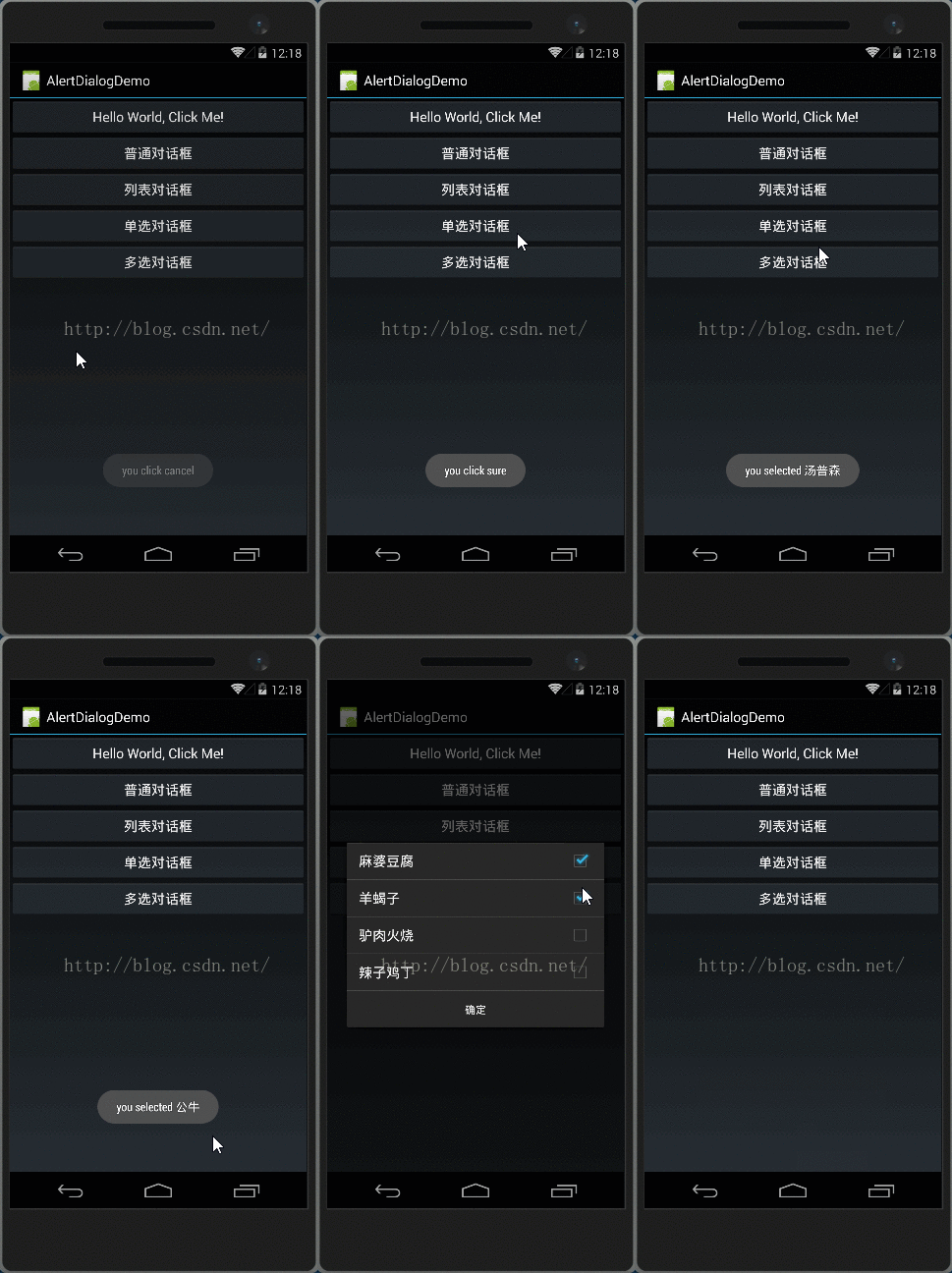
主要代码:MainActivity.class
public class MainActivity : Activity { int count = 1; private Button btn_alertDialog_one, btn_alertDialog_two, btn_alertDialog_three, btn_alertDialog_four; private bool[] checkItems; private AlertDialog alertDialog = null; private AlertDialog.Builder builder = null; protected override void OnCreate(Bundle bundle) { base.OnCreate(bundle); SetContentView(Resource.Layout.Main); bindViewClick(); } private void bindViewClick() { btn_alertDialog_four = FindViewById<Button>(Resource.Id.btn_alertDialog_four); btn_alertDialog_three = FindViewById<Button>(Resource.Id.btn_alertDialog_three); btn_alertDialog_two = FindViewById<Button>(Resource.Id.btn_alertDialog_two); btn_alertDialog_one = FindViewById<Button>(Resource.Id.btn_alertDialog_one); btn_alertDialog_one.Click += delegate { onClick(btn_alertDialog_one); }; btn_alertDialog_two.Click += delegate { onClick(btn_alertDialog_two); }; btn_alertDialog_three.Click += delegate { onClick(btn_alertDialog_three); }; btn_alertDialog_four.Click += delegate { onClick(btn_alertDialog_four); }; } private void onClick(View v) { switch (v.Id) { case Resource.Id.btn_alertDialog_one: alertDialog = null; builder = new AlertDialog.Builder(this); alertDialog = builder .SetTitle("sure") .SetMessage("are you sure exit?") .SetNegativeButton("cancel", (s, e) => { Toast.MakeText(this, "you click cancel", ToastLength.Short).Show(); }) .SetPositiveButton("sure", (s, e) => { Toast.MakeText(this, "you click sure", ToastLength.Short).Show(); }) .SetNeutralButton("neutra", (s, e) => { Toast.MakeText(this, "you click neutra", ToastLength.Short).Show(); }) .Create(); //创建alertDialog对象 alertDialog.Show(); var dialog = new AlertDialog.Builder(this); break; case Resource.Id.btn_alertDialog_two: alertDialog = null; builder = new AlertDialog.Builder(this); string[] players = new string[] {"杜兰特","汤普森","考辛斯","卡戴珊"}; alertDialog = builder .SetIcon(Resource.Drawable.players) .SetTitle("选择你喜欢的球员") .SetItems(players, (s, e) => { Toast.MakeText(this, "you selected " + players[e.Which], ToastLength.Short).Show(); }) .Create(); alertDialog.Show(); break; case Resource.Id.btn_alertDialog_three: var a = new AlertDialog.Builder(this); string[] teams = new string[] {"骑士","公牛","快船","马刺","勇士" }; a.SetTitle("你认为下个赛季哪只球队能夺冠") .SetSingleChoiceItems(teams, 0, (s, e) => { Toast.MakeText(this, "you selected " + teams[e.Which], ToastLength.Short).Show(); }) .Create(); a.Show(); break; case Resource.Id.btn_alertDialog_four: var b = new AlertDialog.Builder(this); string[] menu = new string[] { "麻婆豆腐","羊蝎子","驴肉火烧","辣子鸡丁"}; checkItems = new bool[] {false,false,false,false}; b = b.SetIcon(Resource.Drawable.Icon) .SetMultiChoiceItems(menu, checkItems, (s, e) => { //Toast.MakeText(this, "you selected " + menu[e.Which], ToastLength.Short).Show(); checkItems[e.Which] = e.IsChecked; }) .SetPositiveButton("确定", (s, e) => { string result = string.Empty; for (int i = 0; i < checkItems.Length; i++) { if (checkItems[i]) { result += menu[i] + ","; } } Toast.MakeText(this, "you selected " + result, ToastLength.Short).Show(); }); b.Create(); b.Show(); break; } } }用法非常简单创建一个Builder对象后,调用Create方法创建一个AlertDialog对象,最后调用show方法显示出来,当然你也可以像这样直接new 一个AlertDialog对象
var b = new AlertDialog.Builder(this);设置一个setCancelable (true|false)看看有没有什么区别
3.通过Builder的setView()定制显示的AlertDialog
我们可以自定义一个与系统对话框不同的布局,然后调用setView()将我们的布局加载到AlertDialog上,上面我们来实现这个效果: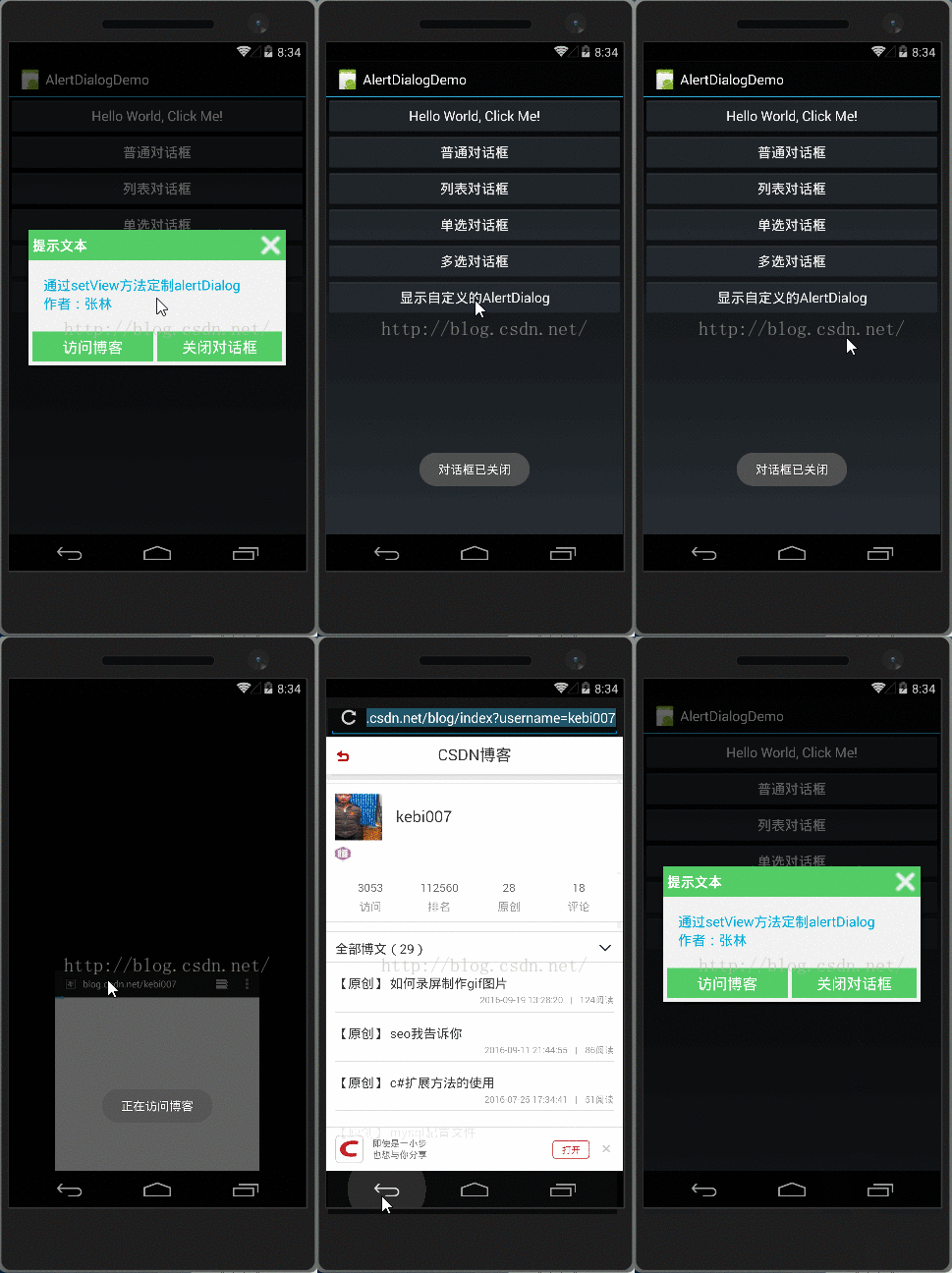
我就贴一下几个主要的布局和样式文件
1.对话框头部的取消按钮样式:在drawable文件下创建一个btn_selector_exit.xml文件,在这里要注意一点item下的属性android:background=“#dedede”,这样直接写会报错,我这里用的是换颜色,所以我在string.xml文件下写了两个颜色,大家要注意一下,我有点想不通的是为什么background属性直接写颜色代码会出错,有点郁闷,如果你有好的解释也可以告诉我这个android的 菜鸟
<drawable name="pressed_color">#0cb026</drawable>
<drawable name="default_color">#53cc66</drawable>
<?xml version="1.0" encoding="utf-8" ?><selector xmlns:android="http://schemas.android.com/apk/res/android"> <item android:state_pressed="true" android:drawable="@drawable/exit_press"/> <item android:drawable="@drawable/exit"/></selector>
2.底部两个按钮按下换背景色的样式新建一个btn_selector_choose.xml文件
<?xml version="1.0" encoding="utf-8" ?><selector xmlns:android="http://schemas.android.com/apk/res/android"> <item android:state_pressed="true" android:drawable="@drawable/pressed_color" /> <item android:drawable="@drawable/default_color" /></selector>
3.最重要的还是<?xml version="1.0" encoding="utf-8"?>
<RelativeLayout xmlns:android="http://schemas.android.com/apk/res/android" android:id="@+id/layout_relative" android:layout_width="match_parent" android:layout_height="match_parent"><!--头部--> <RelativeLayout android:id="@+id/layout_title" android:layout_width="match_parent" android:layout_height="wrap_content" android:layout_alignParentLeft="true" android:layout_alignParentTop="true" android:background="#53cc66" android:padding="5dp"> <TextView android:layout_width="match_parent" android:layout_height="wrap_content" android:layout_centerVertical="true" android:text="提示文本" android:textSize="18sp" android:textStyle="bold" android:textColor="#ffffff" /> <Button android:id="@+id/btn_cancel" android:layout_width="30dp" android:layout_height="30dp" android:layout_alignParentRight="true" android:background="@drawable/btn_selector_exit" /> </RelativeLayout><!--中间内容--> <LinearLayout android:id="@+id/layout_detail" android:layout_height="wrap_content" android:layout_width="match_parent" android:layout_below="@+id/layout_title" android:layout_centerInParent="true" android:orientation="vertical" android:background="#f1f1f1" android:padding="20dp" > <TextView android:layout_width="wrap_content" android:layout_height="wrap_content" android:text="通过setView方法定制alertDialog" android:textColor="#04AEDA" android:textSize="18sp" /> <TextView android:layout_width="wrap_content" android:layout_height="wrap_content" android:text="作者:张林" android:textColor="#04AEDA" android:textSize="18sp" /> </LinearLayout><!--底部按钮--> <LinearLayout android:layout_width="match_parent" android:layout_height="wrap_content" android:layout_below="@+id/layout_detail" android:orientation="horizontal" android:background="#f1f1f1" android:padding="5dp" > <Button android:id="@+id/btn_blog" android:layout_width="match_parent" android:layout_height="40dp" android:layout_weight="1" android:background="@drawable/btn_selector_choose" android:text="访问博客" android:textColor="#ffffff" android:textSize="20sp" android:layout_marginRight="5dp" /> <Button android:id="@+id/btn_close" android:layout_width="match_parent" android:layout_height="40dp" android:layout_weight="1" android:background="@drawable/btn_selector_choose" android:text="关闭对话框" android:textColor="#ffffff" android:textSize="20sp" /> </LinearLayout></RelativeLayout>
mainactivity代码,这个布局我就不贴了。
public class MainActivity : Activity { private AlertDialog alertDialog = null; private AlertDialog.Builder builder = null; private Button btn_show = null; protected override void OnCreate(Bundle bundle) { base.OnCreate(bundle); SetContentView(Resource.Layout.Main); bindViewClick(); builder = new AlertDialog.Builder(this); LayoutInflater layoutInflater = LayoutInflater.From(this); var view_customer = layoutInflater.Inflate(Resource.Layout.view_dialog_custom, null, false); builder.SetView(view_customer); builder.SetCancelable(false); alertDialog = builder.Create(); view_customer.FindViewById(Resource.Id.btn_cancel).Click += (s, e) => { Toast.MakeText(this, "对话框已关闭", ToastLength.Short).Show(); alertDialog.Dismiss(); }; view_customer.FindViewById(Resource.Id.btn_blog).Click += delegate { Toast.MakeText(this, "正在访问博客", ToastLength.Short).Show(); Uri uri = Uri.Parse("http://blog.csdn.net/kebi007"); Intent intent = new Intent(Intent.ActionView, uri); StartActivity(intent); alertDialog.Dismiss(); }; view_customer.FindViewById(Resource.Id.btn_close).Click += delegate { Toast.MakeText(this, "对话框已关闭", ToastLength.Short).Show(); alertDialog.Dismiss(); }; btn_show = FindViewById<Button>(Resource.Id.btn_show); btn_show.Click += delegate { alertDialog.Show(); }; } }4.当然还有更高级的自定义的对话框,后面继续...........
版权声明
本文仅代表作者观点,不代表百度立场。
本文系作者授权百度百家发表,未经许可,不得转载。